> ## Documentation Index
> Fetch the complete documentation index at: https://docs.twinbay.ai/llms.txt
> Use this file to discover all available pages before exploring further.
# Record a HAR file in Chrome
> Record the provider's web app so we can build a twin of an API Twinbay does not cover yet
If you need a twin for a provider Twinbay does not cover yet, we may ask you for a HAR file. A HAR (HTTP Archive) file records every request a browser tab makes, with its headers, body, response and timing. You record yourself using the provider's own web app, and we build the twin from the requests and responses in the file.
## Before you record
Sign in to a sandbox or test account. Everything the provider's app loads while you record ends up in the file, including the records on screen.
Decide which flows your code depends on, and plan to do each one. A twin covers what the recording shows, so if your code creates an invoice, sends it and voids it, record all three. Add a failure your code handles, such as a required field left empty or a duplicate record. We can only reproduce an error response we have seen.
In Chrome, sign in to the provider's web app and go to the screen where your first flow starts.
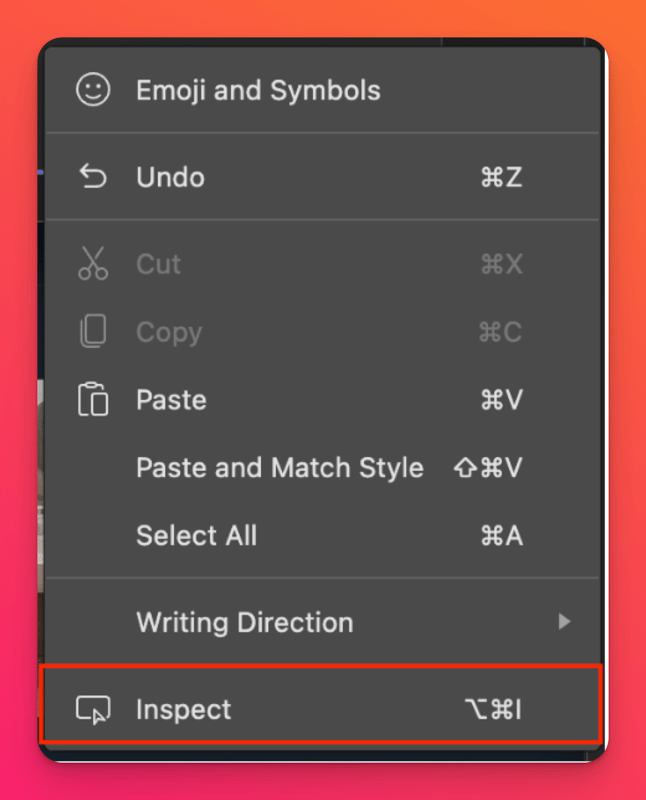
Right-click anywhere on the page and select **Inspect**. You can also press `⌥ ⌘ I` on macOS, or `Ctrl Shift I` on Windows and Linux.
 Click the **Network** tab, then check **Preserve log**. With it on, the recording survives page reloads and moves to another page.
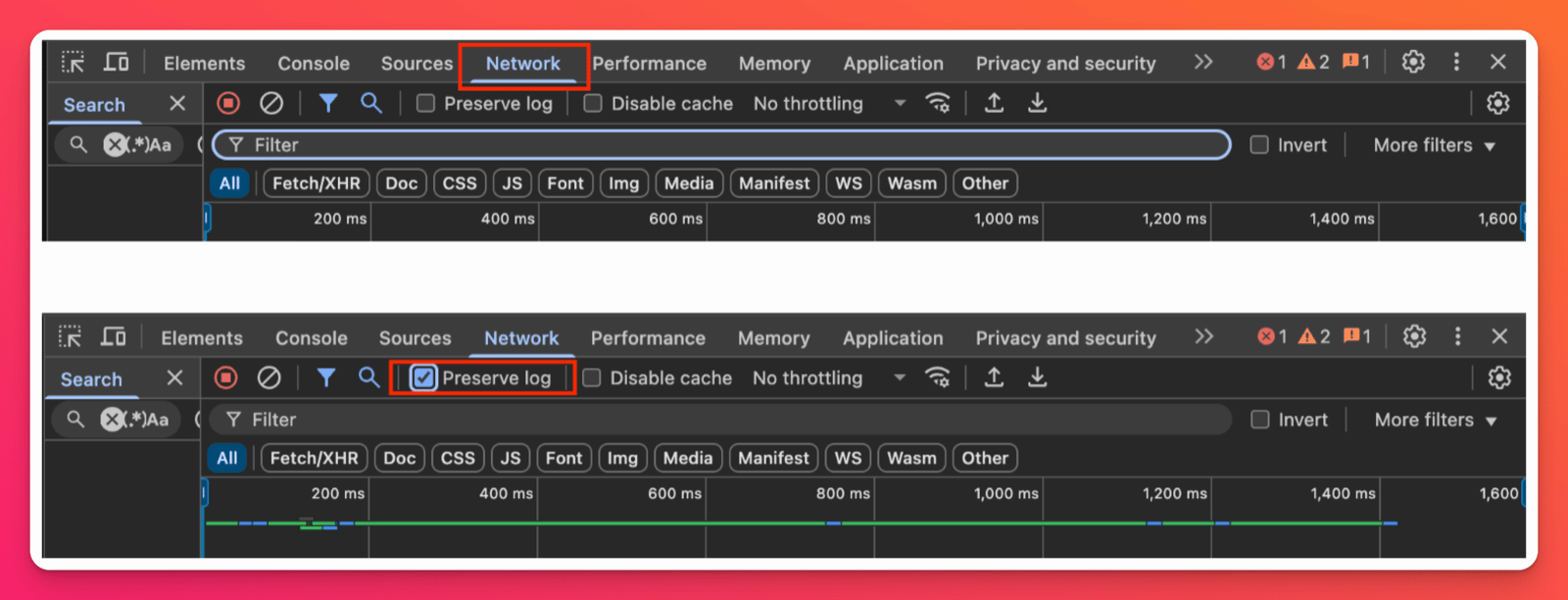 Check that the record button at the top left of the Network tab is red. If it is grey, click it. Click the clear button next to it to empty the list, then reload the page.
 Work through each flow you planned. Requests appear in the list as you go. If a list is long enough to have more than one page, go to the next page too, because a twin reproduces the provider's pagination.
Click the download icon, **Export HAR (sanitized)...**, in the Network toolbar and save the file.
Work through each flow you planned. Requests appear in the list as you go. If a list is long enough to have more than one page, go to the next page too, because a twin reproduces the provider's pagination.
Click the download icon, **Export HAR (sanitized)...**, in the Network toolbar and save the file.
 Email the `.har` file to [hi@twinbay.ai](mailto:hi@twinbay.ai), or reply to the thread where we asked for it. Name the provider and list the flows you recorded, in order.
## What the file contains
The sanitized export removes cookies and `Authorization` headers, so your session with the provider stays out of the file. Request and response bodies stay in. That covers every record the provider's app loaded or you changed, and any API key or secret the app showed you. Some web apps also send tokens in a body or a custom header, and those stay in too.
Do not create or reveal API keys in the provider's app while you record. If one appeared on screen, rotate it in the provider's settings after you send the file.
Chrome can also export a HAR file with sensitive data, which keeps cookies and `Authorization` headers. Use the sanitized export. Building a twin never needs your session with the provider.
Email the `.har` file to [hi@twinbay.ai](mailto:hi@twinbay.ai), or reply to the thread where we asked for it. Name the provider and list the flows you recorded, in order.
## What the file contains
The sanitized export removes cookies and `Authorization` headers, so your session with the provider stays out of the file. Request and response bodies stay in. That covers every record the provider's app loaded or you changed, and any API key or secret the app showed you. Some web apps also send tokens in a body or a custom header, and those stay in too.
Do not create or reveal API keys in the provider's app while you record. If one appeared on screen, rotate it in the provider's settings after you send the file.
Chrome can also export a HAR file with sensitive data, which keeps cookies and `Authorization` headers. Use the sanitized export. Building a twin never needs your session with the provider.